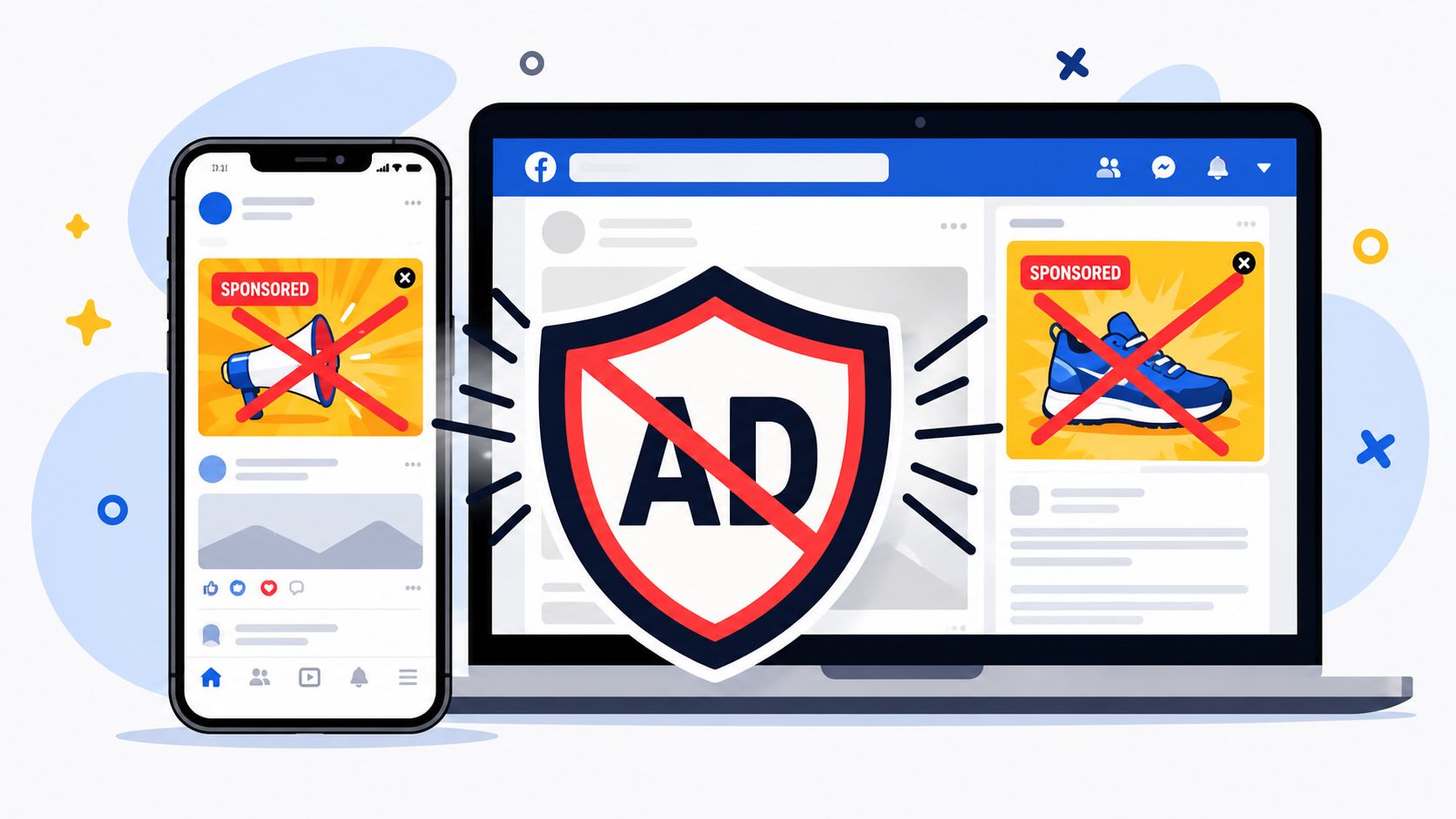
Your Facebook feed is probably full of sponsored posts you never asked for, competitor offers you've already seen ten times, and ads that feel weirdly close to the work you do every day. For marketers, that's more than a nuisance. It's a live look at how Meta's ad system keeps pulling attention, even when you're trying to stay focused.
Learning how to block sponsored ads on Facebook is useful for personal sanity, but it's also a professional habit. When you clean up your own feed, you see the difference between platform curation, advertiser targeting, and the limits of user control. That perspective makes it easier to understand the environment your campaigns live in, and the role that ad recall, feed fatigue, and relevance play. If you want a useful parallel on that user-side experience, the insights from Sift AI are a good companion read, and the same mindset shows up in discussions of organic versus paid social media.
Why Marketers Should Master Blocking Facebook Ads
A marketer's Facebook feed can feel like a live competitor spreadsheet. One minute you're checking a client comment, the next you're seeing the same SaaS demo offer from three vendors, a retargeting ad you already clicked off, and a dozen lookalike placements competing for your attention. That clutter is more than irritating. It makes it harder to separate what Meta thinks is relevant from what is useful.
The user experience is part of the channel
If you run campaigns, you are not just buying placements. You are working inside a system that keeps optimizing toward attention. Seeing the platform from the user side helps you notice how often sponsored content is persistent, how quickly new targeting signals show up, and why a cleaner feed can sharpen focus during creative review, competitive research, and reporting.
There is also a strategic benefit. Blocking or reducing ads on your own account forces you to engage with the controls your audience can use, not the controls you might prefer. That matters when you are evaluating friction, privacy expectations, and how much personalization feels helpful versus invasive.
Practical rule: If you cannot tolerate the ad experience on your own account, your audience probably will not either.
Marketers also tend to underestimate how much feed noise affects thinking time. A cleaner feed is not only a better UX, it makes it easier to spot changes in creative style, CTA language, and advertiser frequency without getting buried in repetitive promotions. For teams that want to reason clearly about the split between unpaid and paid distribution, the insights from Sift AI sit naturally beside the ReachLabs perspective on organic and paid social.
Using Facebook's Built-In Ad Preferences
Facebook's native controls are the first place to start, but they work more like a filter than a kill switch. The path runs through Settings → Accounts Center → Ad preferences, where you can reduce personalization by limiting data use, advertiser exposure, and ad topics. Independent guides note that changes can take up to one day to take effect, so don't expect the feed to look different the second you save.

Start with the advertiser, not the entire platform
The most practical move is to hide the ads you don't want to keep seeing. In Ad preferences, go to Advertisers, then use Hide ads for specific advertisers you've seen recently. That suppresses future sponsored posts from those advertisers, but it doesn't remove all ads from Facebook. It's a targeted cleanup, not a global shutdown.
If a post is especially irrelevant, use Hide ad on the individual sponsored post first. That tells the system the specific placement was a miss. Then, if the same brand keeps showing up, move to Hide all ads from this advertiser. That layered approach is what works in practice because Facebook's ad system is designed to keep serving ads even after you hide one example of it.
Use the same path on desktop and mobile
On desktop, the route sits inside the Meta account structure, and the mobile app follows the same logic through the Accounts Center. The labels can shift slightly between iOS, Android, and browser views, but the core flow stays the same, find Ad preferences, then manage Advertisers, Ad topics, and personalization controls.
A cleaner process helps here. If you're doing this for your own account, keep the cleanup ritual consistent. Open the settings, hide the obvious offenders, review the advertiser list, and trim the categories that are clearly off. That creates a better baseline than waiting for the feed to overwhelm you again.
For teams that want a broader workflow around ad account hygiene and platform management, it's also worth comparing this to efforts to streamline Facebook operations in a more general sense, because feed control and account control often get mixed together.
Expect curation, not disappearance
The biggest mistake is treating these settings like an ad blocker. They're not. Facebook's own control architecture is built to reduce personalization, not to remove every sponsored placement from the product. In practice, that means you're steering the feed, not clearing it.
The goal is to reduce repetition and bad targeting, then keep tightening the screws when new ads slip through.
That's why this method works best when you think in terms of maintenance. Hiding one advertiser helps. Pruning a feed topic helps. Repeating the process after new activity or targeting signals show up helps even more. It's the same reason the cleanest users stay clean, they keep touching the controls instead of assuming one pass solved it.
Deep Dive into Advanced Privacy Settings
The next layer is less about hiding what already got through and more about cutting off the signals Facebook uses to decide what to show you. In the ad controls, that means going beyond visible sponsored posts and into the settings that shape personalization. The most important shift is to treat Ad settings as a data filter, not just a cosmetics tool.

Reduce the inputs that feed ad targeting
Inside Meta's account controls, look for switches that limit ads based on data from partners and ads based on your activity on Facebook. Those are high-impact controls because they attack the personalization pipeline at the source. If you leave them on, you're still giving the system plenty of material to keep refining your ad feed.
After that, review Your interests and Ad topics. These lists can get long fast because they're inferred from clicks, follows, page views, and other signals. Cleaning them out won't make every sponsored post disappear, but it does lower the chances that Facebook keeps serving you hyper-specific ads based on stale assumptions.
Useful mindset: if an interest category doesn't describe what you care about now, remove it.
This is also where privacy-minded users can make a meaningful dent in feed relevance. Captapi's Facebook privacy guide is helpful context if you're already thinking about how profile visibility and personalization signals interact.
Work from the account center, not the feed
A lot of people stay stuck at the post level. They hide one ad, then another, and never touch the underlying settings. That approach is too slow if your goal is to stop the feed from learning the wrong things about you. The account-center route is stronger because it changes how the system treats your activity across the account.
If you manage a brand presence, this is also a good moment to compare how privacy controls shape what users see with how they experience comment and reputation surfaces, including removing reviews from Facebook. The same pattern shows up there too. Surface-level cleanup helps, but deeper account settings usually matter more.
Expect repetition, then keep pruning
Even after a cleanup, some interests can reappear. That's normal. Meta keeps collecting new signals, so a one-time review isn't the final answer. Revisit the list occasionally, especially after changes in your browsing habits, campaign research, or brand monitoring work.
A technical walkthrough can help here because the interface is easy to skim past when you're moving quickly.
The practical takeaway is simple. The more you limit the data sources behind personalization, the less likely Facebook is to keep guessing wrong about you. That doesn't eliminate sponsorship, but it does make the feed feel less like a behavioral echo chamber.
Leveraging Third-Party Tools and Ad Blockers
Native controls are good for reducing relevance. Browser tools are better for reducing visual noise. On desktop, browser extensions like uBlock Origin and privacy-focused browsers such as Brave can block ad scripts before they fully load, which is a different kind of fix than Facebook's own settings.

What third-party tools do differently
Facebook's built-in controls try to influence which ads get shown. Browser blockers try to stop ad elements from rendering in the first place. That distinction matters. If you're sick of seeing sponsored placements in the desktop feed, a browser-level tool can be much more aggressive than hiding advertisers one by one.
This is why major-market privacy advice now emphasizes combining platform settings with tools like uBlock Origin or browsers like Brave on desktop for more ad reduction. The best use case is a layered one, Facebook settings for personalization, browser tools for display suppression.
The trade-offs are real
The downside is that aggressive blocking can interfere with site behavior. Some websites rely on scripts that also support login flows, embeds, or page layout. If you block too broadly, you may break features you need.
Mobile is also a different story. Browser tools are much less effective inside the Facebook app itself, so don't expect a desktop extension to solve your phone feed. On mobile, native controls still do most of the work.
A quick comparison helps:
- uBlock Origin: Strong visual blocking on desktop, more control, but can break some page elements.
- Brave: Easier all-in-one privacy posture, good for general browsing, but still limited inside apps.
- Facebook settings: Best for reducing personalization, weaker for removing visible sponsored content.
- Facebook app alone: The least flexible option, because the app keeps the experience inside Meta's own environment.
Browser blockers are best treated as a separate layer, not a replacement for account controls.
For a marketer, this separation is useful. If you're researching competitors, testing creative, or just trying to keep your own workspace clean, browser tools can reduce noise fast. But the feed you see inside the app will still depend heavily on Meta's own settings and targeting model.
Understanding the Limits of Blocking Ads on Facebook
There's no real path to a completely ad-free Facebook experience. That's not a flaw in your setup, it's how the platform is built. Sponsored placements are part of the product, and user controls are designed to manage exposure, not remove the ad layer entirely.

Sponsored ads and sponsored posts are not the same thing
A sponsored ad from an unknown brand is the easiest thing to reduce because you can hide the advertiser or the specific placement. A sponsored post from a page you already follow is trickier, because it sits closer to the organic content stream. You may still encounter paid promotions even after you've cleaned up advertiser settings, especially if those pages continue to promote posts or if your activity keeps feeding new targeting signals.
That's why the right expectation is control, not elimination. You can make the feed less repetitive, less personalized, and less distracting. You can't turn Facebook into a zero-ad product without leaving the platform.
Why the feed keeps changing anyway
Facebook keeps learning from fresh behavior. New page visits, new clicks, new activity, and new inferred interests can all reintroduce sponsored content. That's why a one-time cleanup usually fades over time. If the feed starts drifting again, repeat the advertiser hides and revisit the ad settings.
The practical difference shows up in focus. A marketing manager who trims the feed sees fewer interruptions while reviewing campaign work. A creator who blocks noisy advertisers gets a cleaner signal on what kinds of creative styles are floating around. A strategist gets a better read on how often sponsored content takes over the timeline.
For a deeper context on the ad ecosystem behind all of this, the definition of programmatic advertising helps explain why feed control is never absolute. The same system that gives platforms precision also makes user-side control partial by design.
Bottom line: the aim is less ad noise, not zero ads.
That mindset keeps the process from becoming frustrating. If you treat the platform like a system you can tune rather than a system you can silence, the controls start to make sense.
Frequently Asked Questions About Blocking Facebook Ads
Will this also reduce ads on Instagram?
Partly, yes, because Meta ties some controls through the Account Center. But don't assume the exact same result in every app. The settings you change in Facebook help shape personalization across the account structure, yet each surface still has its own ad delivery behavior.
Does using an ad blocker break Facebook's terms of service?
The platform's own rules can change, so you should check the current policy language before relying on any third-party tool for work-critical browsing. From a practical standpoint, browser blockers are common on desktop, but they can affect how pages load or behave. That makes them useful for feed cleanup, not something to blindly install and forget.
If I block ads as a user, does that hurt my ability to run campaigns?
No, not in any direct sense. Blocking sponsored posts in your personal feed doesn't disable your advertising account or change your campaign permissions. The actual impact is interpretive, because you'll better understand how users experience your ads when you're looking at the feed with fewer distractions.
Can I hide every sponsored post from one advertiser forever?
Not really. You can suppress what you've seen and reduce the odds of seeing more from that advertiser, but Facebook can still reintroduce paid content based on new signals. That's why regular cleanup works better than a one-time sweep.
What's the fastest practical combination?
Use Hide ad on the worst offenders, hide repeat advertisers, then go into Ad preferences and limit the personalization inputs. If you spend most of your time on desktop, pair that with a browser tool like uBlock Origin or Brave for more visual reduction.
If you want help applying this same privacy-aware, audience-first thinking to your own campaigns, visit ReachLabs.ai and see how a more strategic social workflow can support cleaner targeting, sharper creative, and stronger brand visibility.